




Columns Page Block
This page block type is the most sophisticated of the bunch, offering a wide variety of options for you to choose from. Can be simple content or clickable cards, can be 3, or 4 columns across, and some other variations available.
H2 – 6-Across Logos Block (white bg)
This particular variation is achieved by selecting “Default” Column Style, and “Default” Image Style, and not entering any text into the text input for the column module.
H2 – 7-Across Logos Block (light gray bg)
This particular variation is achieved by selecting “Default” Column Style, and “Default” Image Style, and not entering any text into the text input for the column module.
H2 – 8-Across Logos Block (white bg)
This particular variation is achieved by selecting “Default” Column Style, and “Default” Image Style, and not entering any text into the text input for the column module.
H2 – 3-Across Photo Cards, Clickable (light gray bg)
This particular variation is achieved by selecting “Default” Column Style, and “Default” Image Style, and not entering any text into the text input for the column module.


H2 – 3-Across Parts Photo Cards, Clickable (white bg)
This particular variation is very similar to the other Photo Card variation, however, the admin needs to pick imagery of parts shot on a white background.
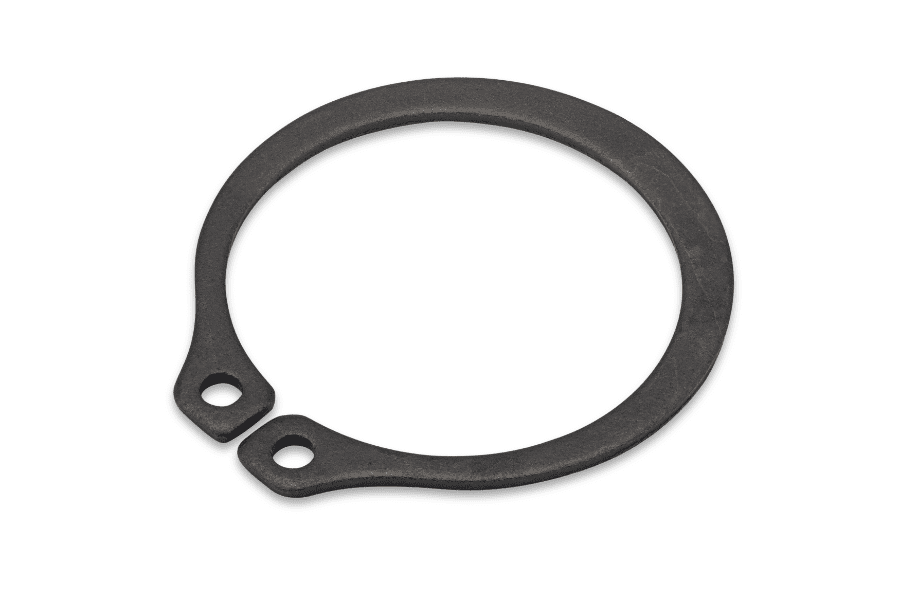
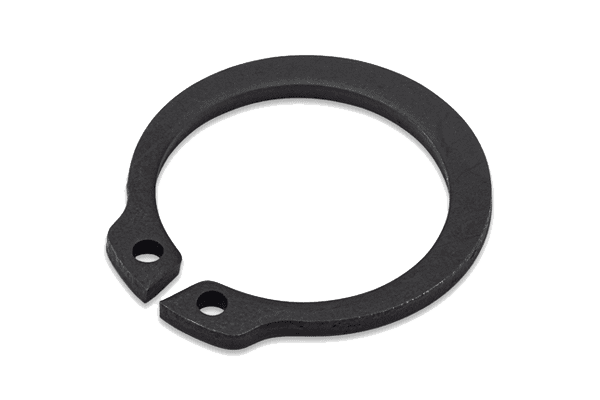
H2 – 3-Across Parts Photo Cards, Clickable (light gray bg)
The light gray background enables the card to be white, which looks kinda nice with these parts images (shot on a white bg). I wonder if the admin should upload PNG files with transparent backgrounds instead so that the cards always looks like one continuous color card??
H2 – 2-Across Photo Cards, Clickable (white bg)
This particular variation is achieved by selecting “Default” Column Style, and “Default” Image Style.
H2 – 2-Across Cards, Just Text (light gray bg)
This particular variation is achieved by selecting “Default” Column Style, and “Default” Image Style, and not uploading an image into the image input for the column module. NOTICE: the padding-top is SUPER tight on this variation. Also, notice that the background of the card isn’t white.
Header 3 Title Example
Paragraph text that is short enough to get read but long enough to convey a solid message that’s not obvious. long enough to convey a solid message that’s not obvious.
- You can also enter in a bulleted list
- In theory, this could be a clickable text link
- You can also enter in a bulleted list
Header 3 Title Example
Paragraph text that is short enough to get read but long enough to convey a solid message that’s not obvious. long enough to convey a solid message that’s not obvious.
- You can also enter in a bulleted list
- In theory, this could be a clickable text link – This text link needs to have the underline, like basic paragraph text
- You can also enter in a bulleted list
H2 – 2-Across Cards, Just Text (white bg)
This particular variation is achieved by selecting “Default” Column Style, and “Icon” Image Style, and not uploading an image into the image input for the column module. NOTICE: the padding-top is SUPER tight on this variation.
Header 3 Title Example
Paragraph text that is short enough to get read but long enough to convey a solid message that’s not obvious. long enough to convey a solid message that’s not obvious.
- You can also enter in a bulleted list
- In theory, this could be a clickable text link
- You can also enter in a bulleted list
Header 3 Title Example
Paragraph text that is short enough to get read but long enough to convey a solid message that’s not obvious. long enough to convey a solid message that’s not obvious.
- You can also enter in a bulleted list
- In theory, this could be a clickable text link – This text link needs to have the underline, like basic paragraph text
- You can also enter in a bulleted list
H2 – 2-Across Cards, Just Text (light gray bg)
This particular variation is achieved by selecting “Card” Column Style, and “Icon” Image Style, and not uploading an image into the image input for the column module. NOTICE: the padding-top is still super cramped. I’m playing around with variations to discover how the appropriate spacing was added to the cards on the PBL landing page.
Header 3 Title Example
Paragraph text that is short enough to get read but long enough to convey a solid message that’s not obvious. long enough to convey a solid message that’s not obvious.
- You can also enter in a bulleted list
- In theory, this could be a clickable text link – This text link needs to have the underline, like basic paragraph text
- You can also enter in a bulleted list
H2 – 2-Across Cards, Just Text (white bg)
This particular variation is achieved by selecting “Card” Column Style, and “Default” Image Style, and not uploading an image into the image input for the column module. NOTICE: Looks like the correct way to get the correct padding top on the card (in the event that NO image is uploaded) is to select “Default” Image Style in the Settings tab.
Header 3 Title Example
Paragraph text that is short enough to get read but long enough to convey a solid message that’s not obvious. long enough to convey a solid message that’s not obvious.
- You can also enter in a bulleted list
- In theory, this could be a clickable text link – This text link needs to have the underline, like basic paragraph text
- You can also enter in a bulleted list
H2 – 3-Across Icon Cards, NOT Clickable (light gray bg)
This is a look at what it looks like if the admin chooses the “icon” Image Style.

Header 3 Title Example
The centering of this text is all handled by the admin, which leaves us a little vulnerable from a design perspective – we’re at the mercy of the admin’s ability to administer this content consistently form page to page.
Header 3 Title Example
For example, if the admin forgets to specify that this content should be aligned-center, then this text will look like this. This amount of control can be nice, but again, requires the admin to have a deeper understanding of how to wield this.
Header 3 Title Example
The centering of this text is all handled by the admin, which leaves us a little vulnerable from a design perspective – we’re at the mercy of the admin’s ability to administer this content consistently form page to page.
H2 – 4-Across Icon Cards, NOT Clickable (white bg)
This is a look at what it looks like if the admin chooses the “icon” Image Style.

Header 4 Title Example
Duis leo. Donec orci lectus, aliquam ut, faucibus non, euismod id, nulla. Phasellus dolor.

Header 4 Title Example
Standard paragraph text. Lorem ipsum dolor sit amet, consectetur adipiscing elit. Phasellus in tortor laoreet.

Header 4 Title Example
Standard paragraph text. Lorem ipsum dolor sit amet, consectetur adipiscing elit. Phasellus in tortor laoreet.

Header 4 Title Example
Duis leo. Donec orci lectus, aliquam ut, faucibus non, euismod id, nulla. Phasellus dolor.
H2 – 3-Across Cards, NO Imagery, Clickable (light gray bg)
This is clickable cards would look like if no images are uploaded. NOTICE: there’s padding-top added to these cards, and that’s only because the admin has chosen the image style “Default”. For the record, this padding does NOT exist if the admin chooses “Icon” image style.
H2 – 4-Across Cards, NO Imagery, Clickable (white bg)
This is clickable cards would look like if no images are uploaded. NOTICE: there’s padding-top added to these cards, and that’s only because the admin has chosen the image style “Default”. For the record, this padding does NOT exist if the admin chooses “Icon” image style.
Header 3 Title Example
Paragraph text that is short enough to get read but long enough to convey a solid message that’s not obvious.